Two canvases, one clock
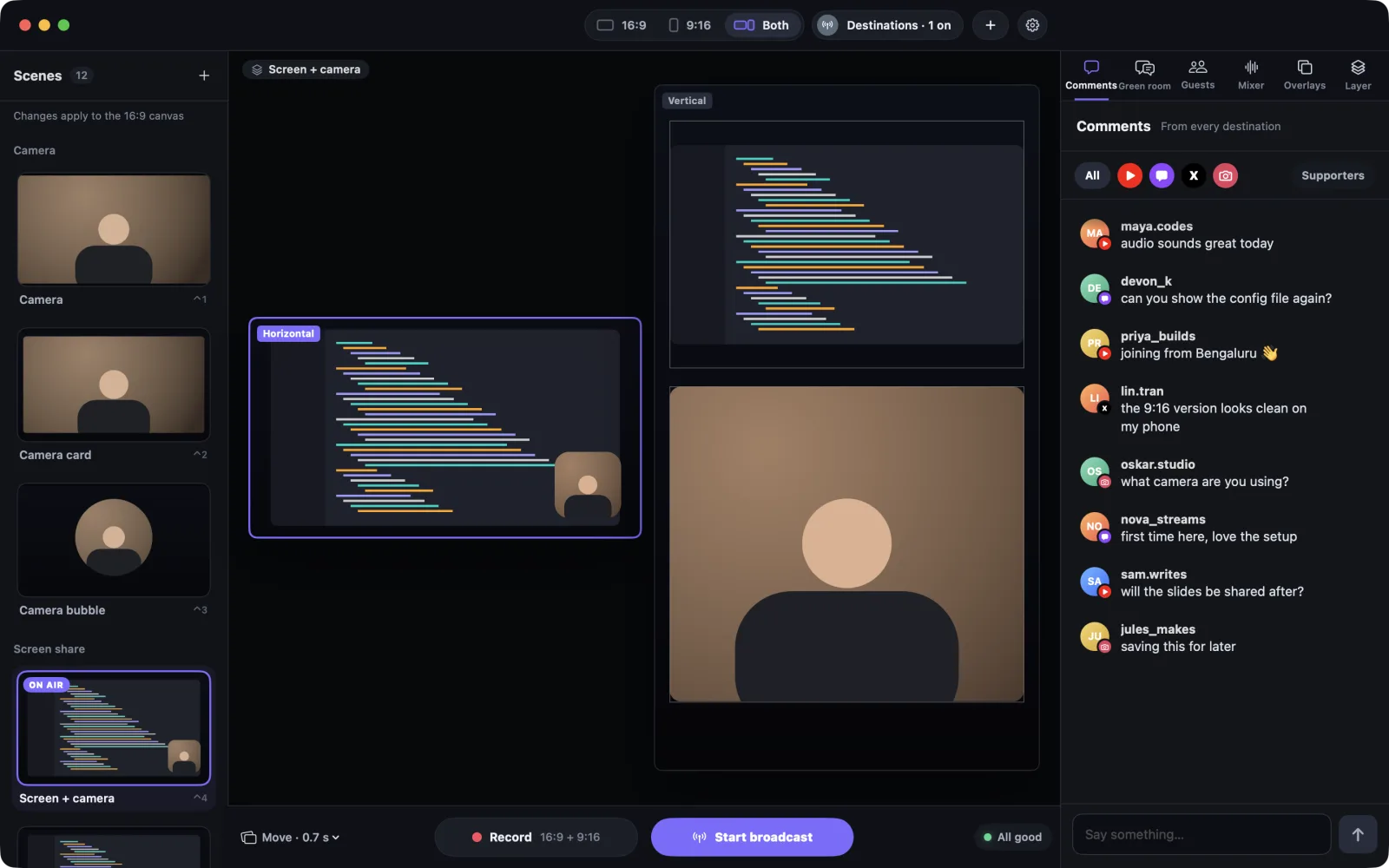
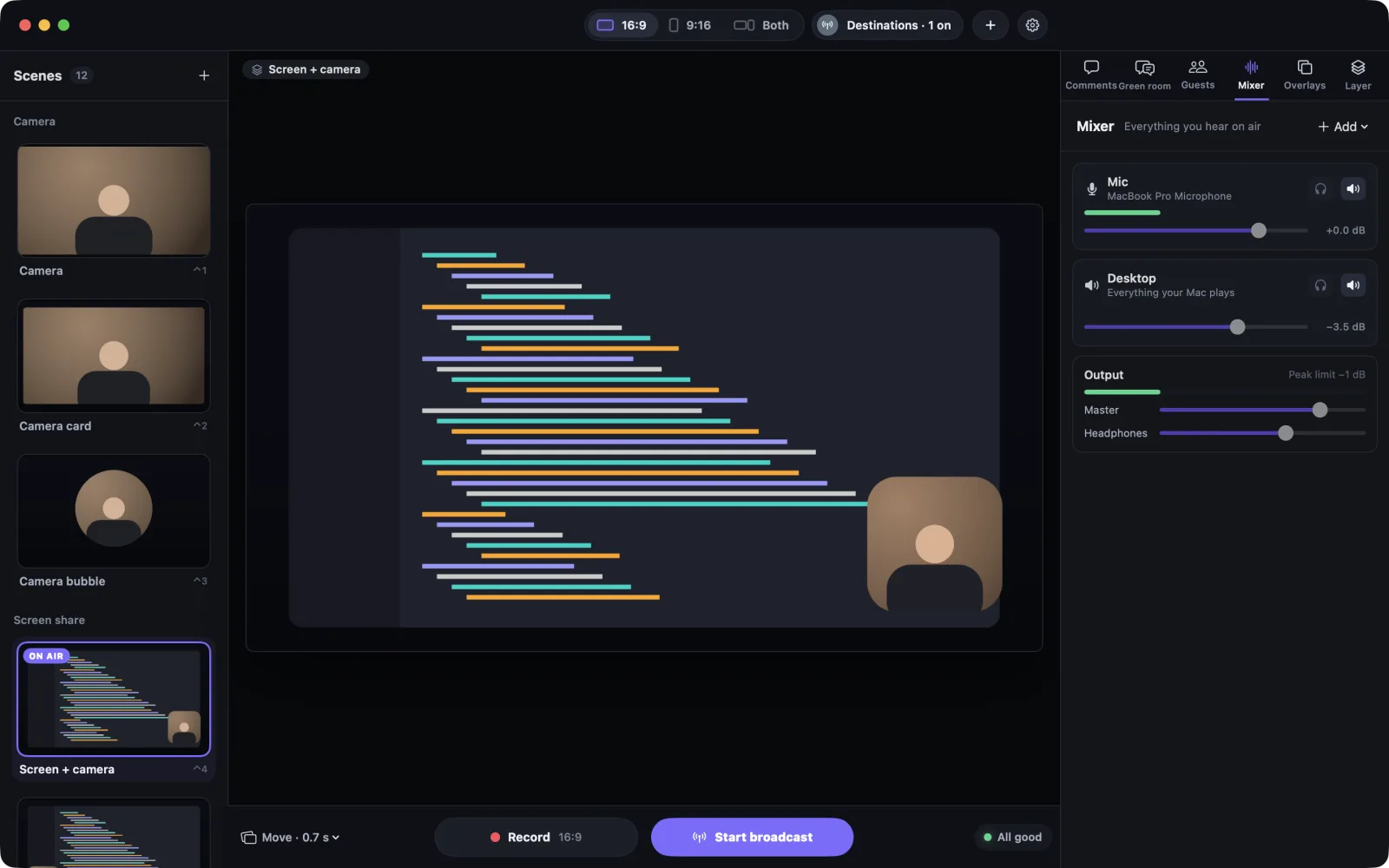
16:9 and 9:16 are rendered together, frame for frame. Drag, resize and snap layers right on the canvas, and undo any edit with ⌘Z.
Framecast is just getting started. Big updates land over the next few weeks. Follow along:Big updates coming. Follow along:
Free and open source. Now on Windows too
A live studio for your Mac that streams and records a 16:9 and a 9:16 canvas at once. Its AI director follows what you say, changes the layout and brings in your graphics as you reach each topic. Don't like a switch? One shortcut takes it back.
Illustration: a presenter is live on a 16:9 and a 9:16 canvas at the same time. As they talk, Framecast's AI director moves from the camera to a screen share, then a roadmap graphic with a round camera bubble, then a bar chart with the camera beside it. When it makes the chart full screen, the presenter presses Control Option Command U and the change is undone.
Demo
Framecast and its AI director running a live stream.
Plays from YouTube. Nothing loads from YouTube until you press play.
Want to see a whole show? Here's a real live stream run with Framecast.
Watch the live streamv1This is version 1, and I'm improving it constantly. Expect a lot to change in the coming weeks.
Guest mode
It needs one extra file. Three steps, all free.
Guests only on your Wi-Fi? You can skip this.
A small zip. No keys inside.
The studio
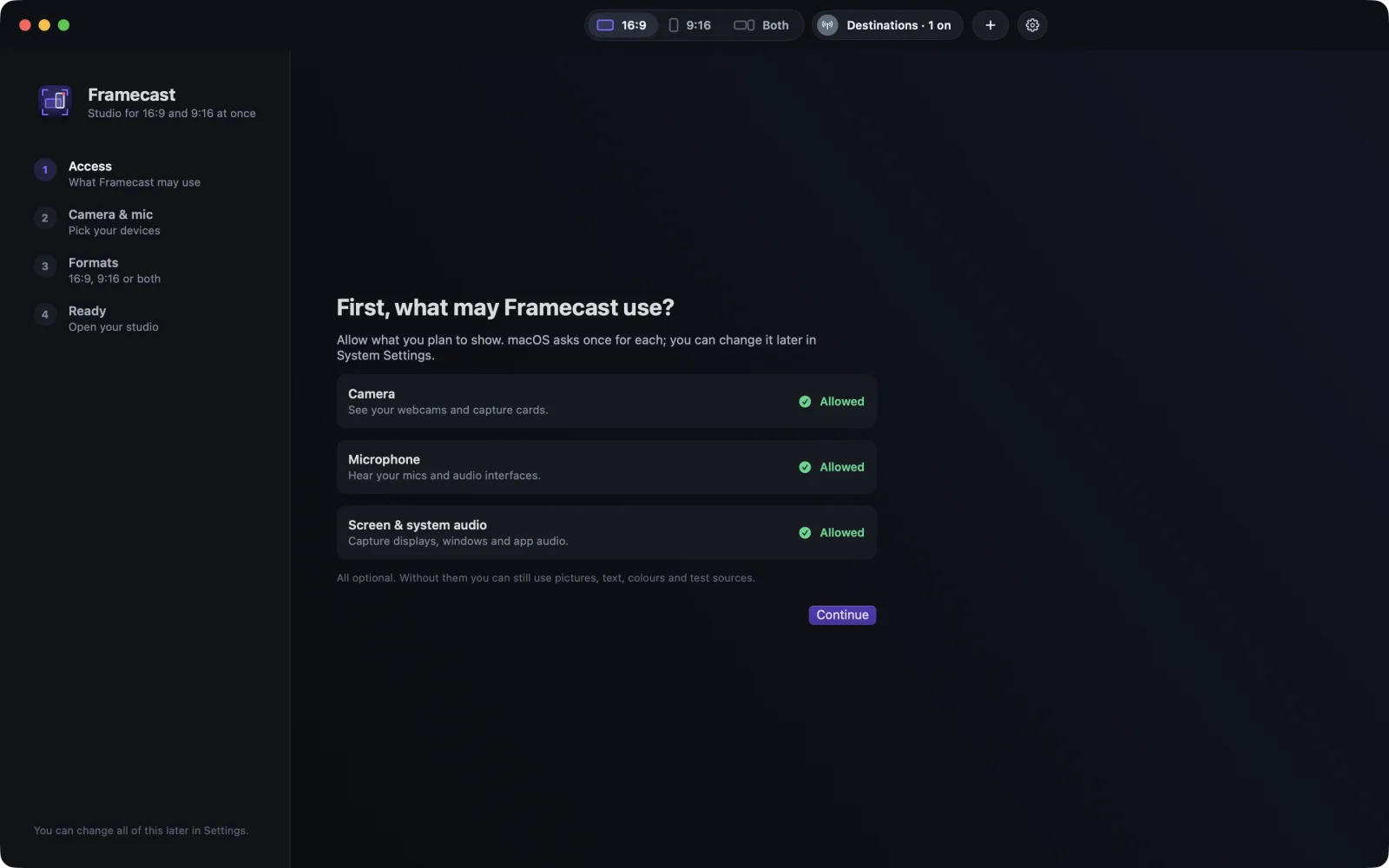
Framecast renders a 16:9 and a 9:16 canvas on the same clock, so your landscape stream and your vertical one are the same show, frame for frame. Switch a scene and both change, each laid out for its own shape. Record them side by side, or send each one to its own destinations.
How the AI director works
You don't need a script, and you don't need a hand on the switcher. Here's what happens between your notes and the stream.
In Rundown › New show, jot down your topics, what you want people to take away and a few lines you might say. Not a script.
Hand the brief to Claude Desktop or Claude Code on your own Claude plan. It writes the outline and makes the visuals: roadmaps, bar charts, gauges, checklists, cards and reference pictures, drawn by Framecast in your show's style.
Turn on Listen and pick Auto. Speech recognition runs on your Mac. Every 6 seconds while you talk, a small model on your Claude or OpenAI key reads the outline and the last 90 seconds of what you said, as text. About $0.10–0.50 per show-hour.
It finds the topic you're on, even if you jump around, ticks off what you've covered and puts up the matching graphic with a fresh look. ⌃⌥⌘U undoes the last change. Suggest mode asks first.
The presenter view lists your topics and ticks them off as you cover them. It stays out of the stream and out of other apps' screen captures.
Framecast splits it into parts, each starting with a cue line. Say the cue and it switches, or suggests the switch. The prompter follows your voice in large type.
Listen can follow English and Hindi mixed in the same sentence. The Hindi model downloads from Apple once.
Following your voice needs macOS 26 or later. On macOS 14 and 15 you can still move through a show by hand with ⌃⌥⌘T.
Features
All of it is in the free download. No account, no subscription, no paywall.
16:9 and 9:16 are rendered together, frame for frame. Drag, resize and snap layers right on the canvas, and undo any edit with ⌘Z.
Each canvas goes to its own file, side by side, as MOV, MP4 or MKV. Markers and scene changes become YouTube chapters, and Clip saves the last 30 seconds in both shapes.
What you say shows at the bottom of both canvases as you say it, recognised on your Mac by Apple's speech recognition. Fix lines in the transcript, and every recording gets an .srt beside it. Needs macOS 26 or later.
Phones join as extra angles of you. Pick one with a click or ⌃⌥⌘1–6, or let the shuffle cut between them in your pauses, with your face kept in frame and your voice lined up with each picture. One camera can give you a medium and a close-up too.
Click on your shared screen and the view glides in, follows your cursor, then eases back to the whole screen. It never zooms into password fields or apps you keep private. Off until you switch it on.
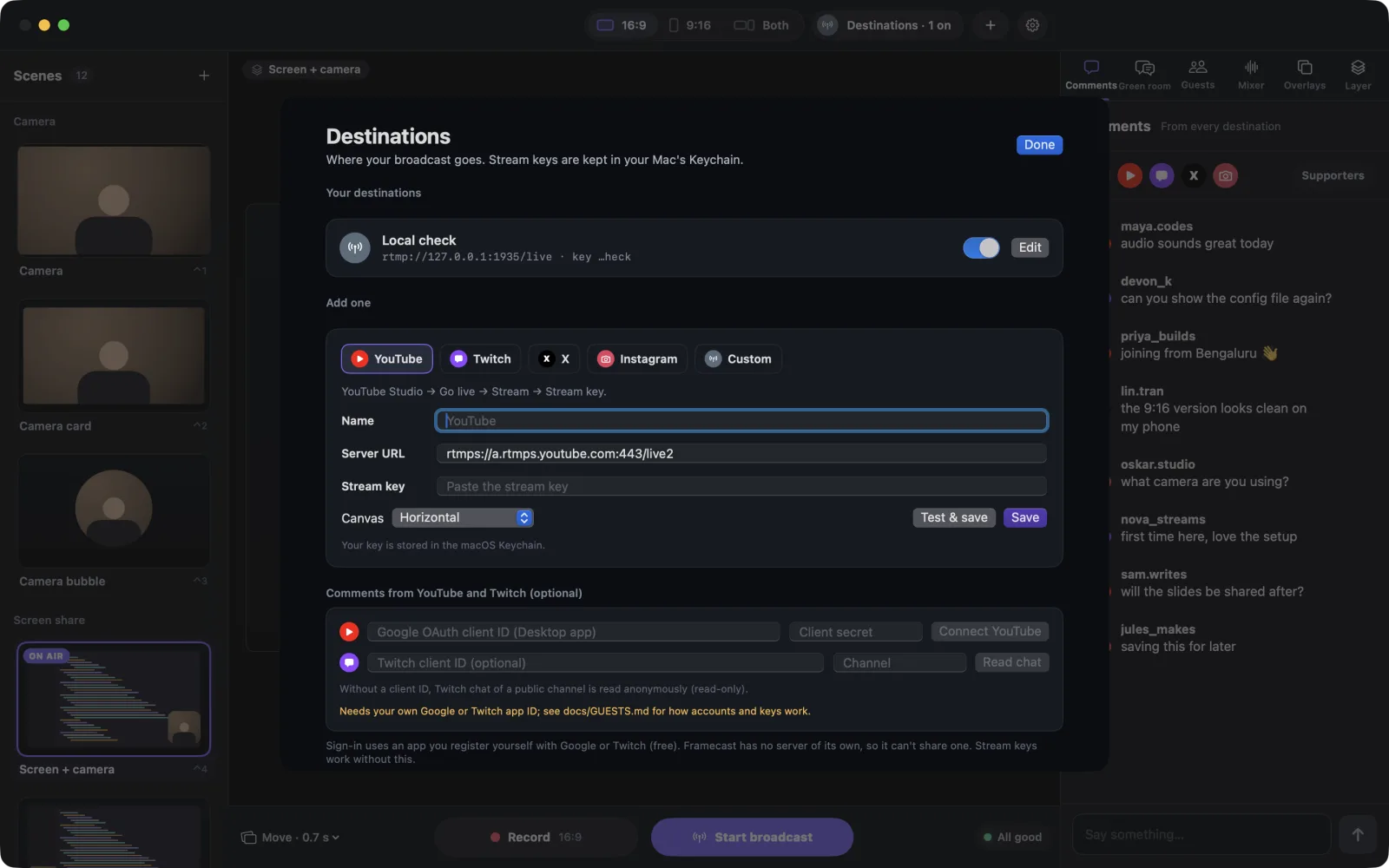
Send each canvas wherever you like. Stream keys stay in your Mac's Keychain, and a pre-flight check tests sound, cameras and disk space first.
Camera, camera bubble, screen with camera, guest panels and more. Pick from 60 backgrounds, from aurora and neon to rooms and nature.
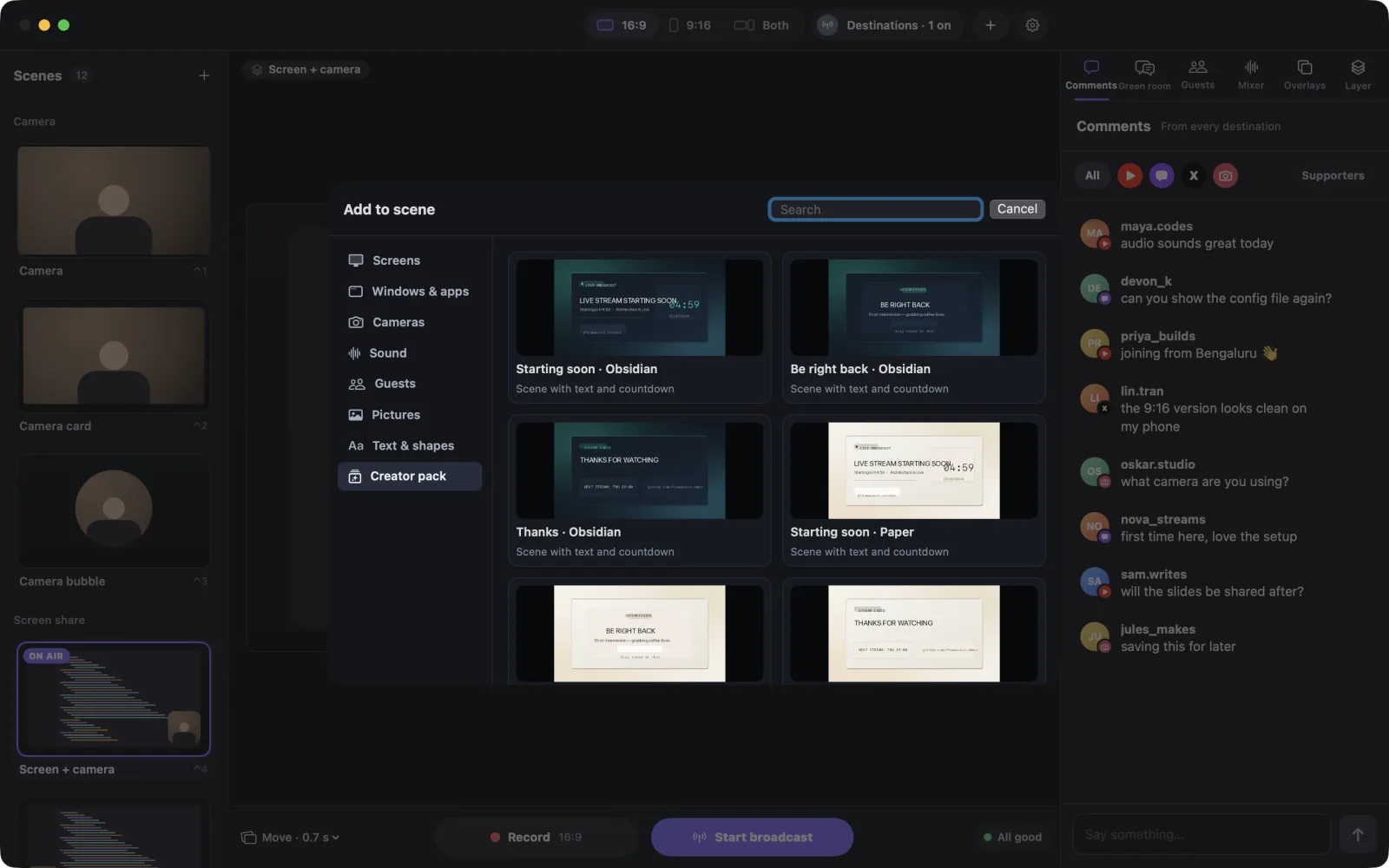
Name tags, headlines, thank-you cards and QR codes animate in over any scene, each on its own shortcut. The creator pack adds intro, break and outro cards with a live countdown.
Plan a show from a brief or a rough script, then let the director switch looks and graphics while you talk. It runs on your own Claude or OpenAI key. Claude Desktop and Claude Code can also drive Framecast through a control link that stays on your Mac.
Every decision is logged in the show's folder
Your topics, ticked off as you go, in a window only you see. The prompter scrolls your script in large type as you speak, and mirrors for teleprompter glass.
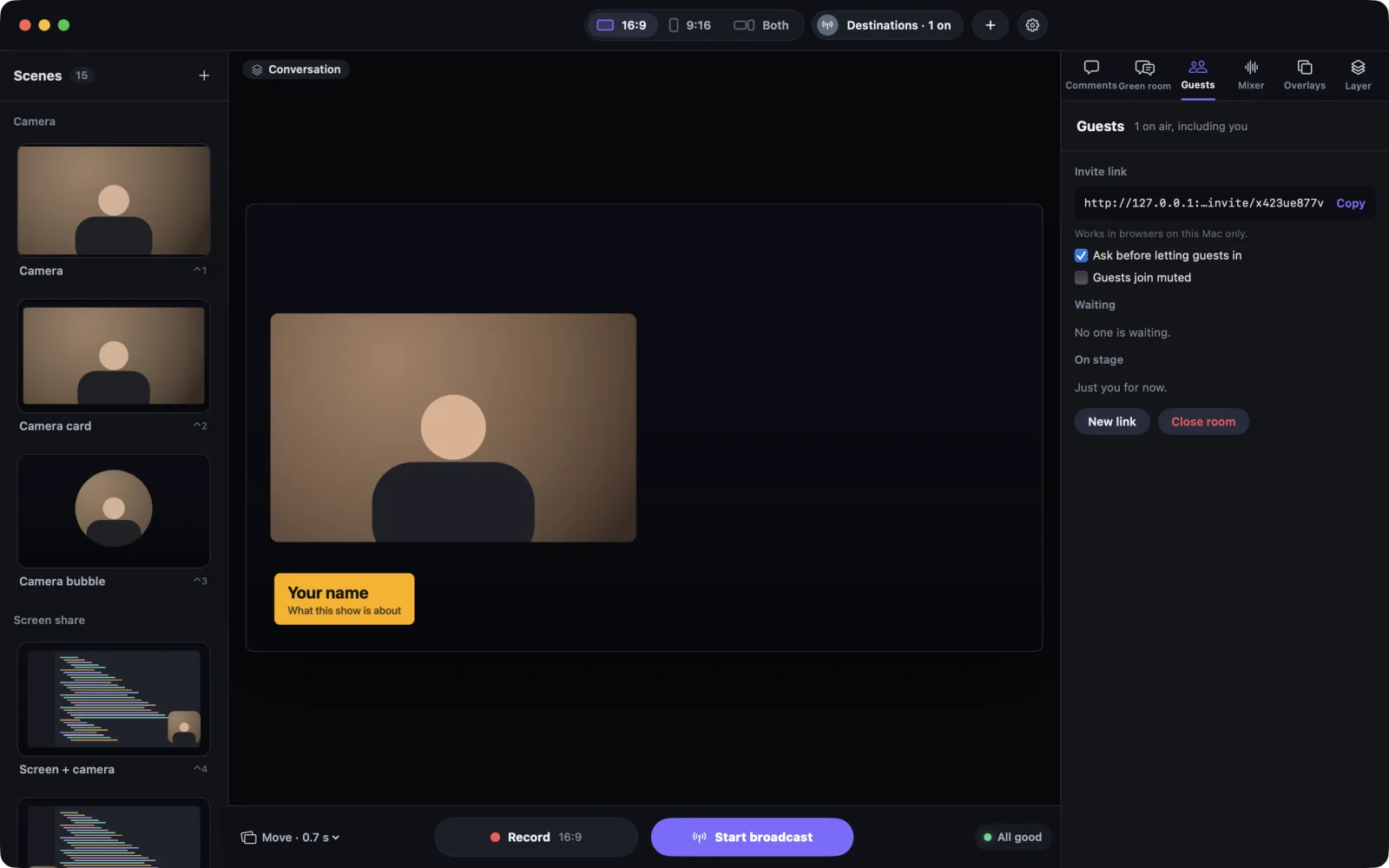
Send a link. Guests open it, check their camera and ask to join, and you let each person in. Run it on your Mac, your Wi-Fi, or anywhere through your own LiveKit Cloud project.
Set up guests from anywhereComments land in one list. Click one to put it on screen. YouTube and Twitch chat use a free app ID you register yourself.
No account, no analytics, no update checks. It only connects where you point it: your stream destinations, and the AI, chat or guest services you turn on.
Open source
Read the code, build it yourself, change what you don't like. Framecast has no server of its own. It only connects where you point it, and you can check that in the code.
git clone https://github.com/DhananjaySarathe/framecast-studio
cd framecast-studio
./scripts/build_app.sh
open build/Framecast.appNeeds the Xcode Command Line Tools (Swift 6). Full Xcode isn't needed. On Windows, run .\setup.cmd and .\build.cmd from a clone of framecast-studio-windows.
Download
Free for Mac, with a developer preview for Windows 11. No account and no tracking.
Framecast 1.1.0
Download for MacFramecast.dmg · 72 MBAll versions and release notes
bcd4e31c86be2857b0a1d85a5872a5d05ca611933b263e21f0596a5836b305f6
To check your copy, run shasum -a 256 ~/Downloads/Framecast.dmg in Terminal and compare.
Framecast isn't signed with a paid Apple developer account, so macOS asks you to confirm once. After that it opens like any other app.
macOS 15 or later
Open System Settings › Privacy & Security, scroll down to Security and click Open Anyway next to Framecast. Confirm with your password or Touch ID, then click Open.
macOS 14 Sonoma
Control-click Framecast in Applications, choose Open, then click Open again.
Following your voice needs macOS 26 or later. Everything else works on macOS 14 and up. Prefer to build it yourself? The source is on GitHub.
cd ~/Downloads
curl -LO https://github.com/DhananjaySarathe/framecast-studio/releases/latest/download/Framecast.dmg
shasum -a 256 Framecast.dmg
open Framecast.dmgThe hash should match the SHA-256 above. Then drag Framecast into Applications.
Framecast Studio 0.1.4 preview
Download for WindowsSetup.exe · 18 MBPortable ZIP, 22 MB All versions and release notes
c89e34a5b4fe3eb961bb2abd4bfbb4eba8296c2b2312b2e763e613df2fcb7149
To check your copy, run Get-FileHash .\Framecast-Studio-Windows-0.1.4-x64-Setup.exe in PowerShell and compare.
The preview isn't code-signed yet, so Windows may warn you once. It installs for your user account only. You don't need admin rights.
Framecast-Studio-Windows-0.1.4-x64-Setup.exe from your Downloads folder. If your browser asks, choose Keep.In the preview
Screen, window and webcam capture, mic and desktop audio, eight scenes, both canvases, recording and streaming to several RTMP/RTMPS servers.
Mac-only for now
The AI director, remote guests, live captions, camera angles and the rundown. Full parity with the Mac app is in progress.
If something goes wrong, open Settings (the gear) › Open logs folder in Framecast and send the newest log with your report. To remove the app, go to Windows Settings › Apps › Installed apps › Framecast Studio › Uninstall. The Windows source is on GitHub.
cd $HOME\Downloads
curl.exe -LO https://github.com/DhananjaySarathe/framecast-studio-windows/releases/download/v0.1.4/Framecast-Studio-Windows-0.1.4-x64-Setup.exe
Get-FileHash .\Framecast-Studio-Windows-0.1.4-x64-Setup.exe
.\Framecast-Studio-Windows-0.1.4-x64-Setup.exeType curl.exe, not curl: in Windows PowerShell, curl runs a different command. Windows 11 includes curl. The hash should match the SHA-256 above.